How to Stop Doomscrolling: Why It's Hard and What Works
Doomscrolling isn't a willpower problem. Why the feed is so hard to put down, and the small, practical changes that make stopping easier.
Block apps. Play to unlock.
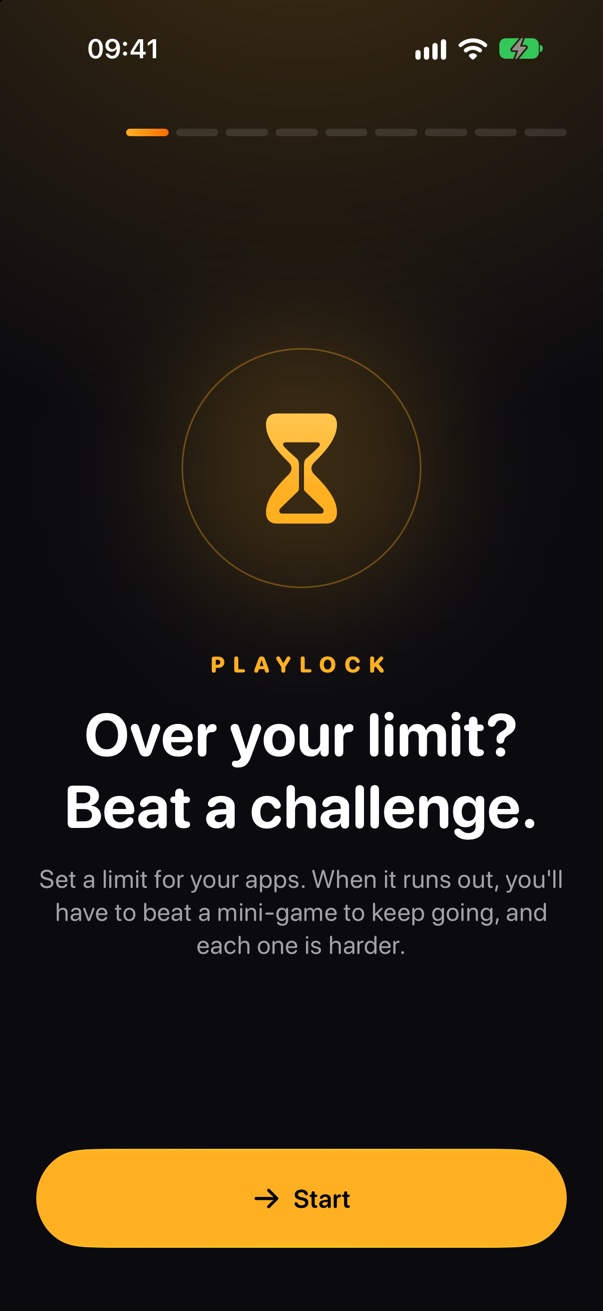
Playlock locks the apps that eat your day once you hit your limit. To keep going you have to beat a quick mini-game against the clock, and every time you ask for more, the next one is harder.
Free on iPhone · Uses Apple's Screen Time · Your data stays on your phone
Why another blocker
A limit you can dismiss in one tap stops working the moment you need it most, and the scroll carries on. Playlock doesn't stop you for good. It puts a small, fair price in the way, so you pause and decide whether this is really how you want to spend the next ten minutes.
You can always get back in. It just costs you a minute of focus.
The fifth extra round of the day is much harder than the first.
A calm day lowers the level. A heavy day raises it.
How it works
Pick the apps that eat your time and give them a daily limit, like 45 minutes of Instagram. Or block them at set hours: bedtime, first thing in the morning, work.
When the time runs out, Playlock covers the app. You get a heads-up 5 minutes before, so it never catches you mid-message.
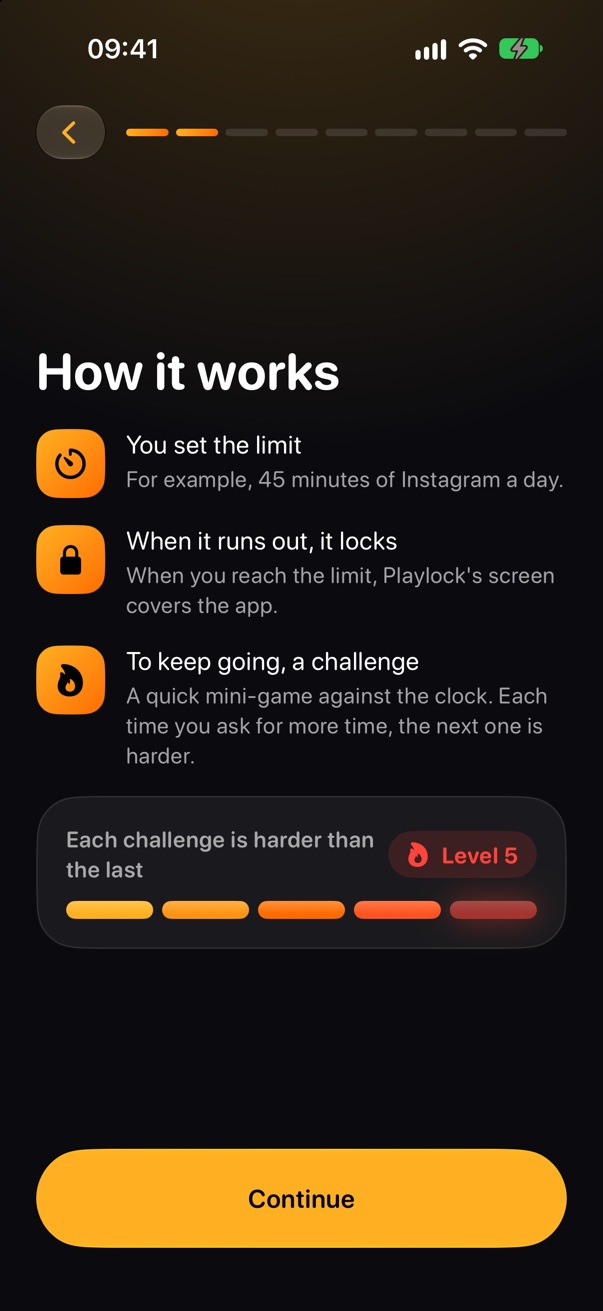
Want more time? Win a quick mini-game and get 5 minutes. Ask again and the next challenge is harder.
Each challenge is harder than the last
Three mini-games
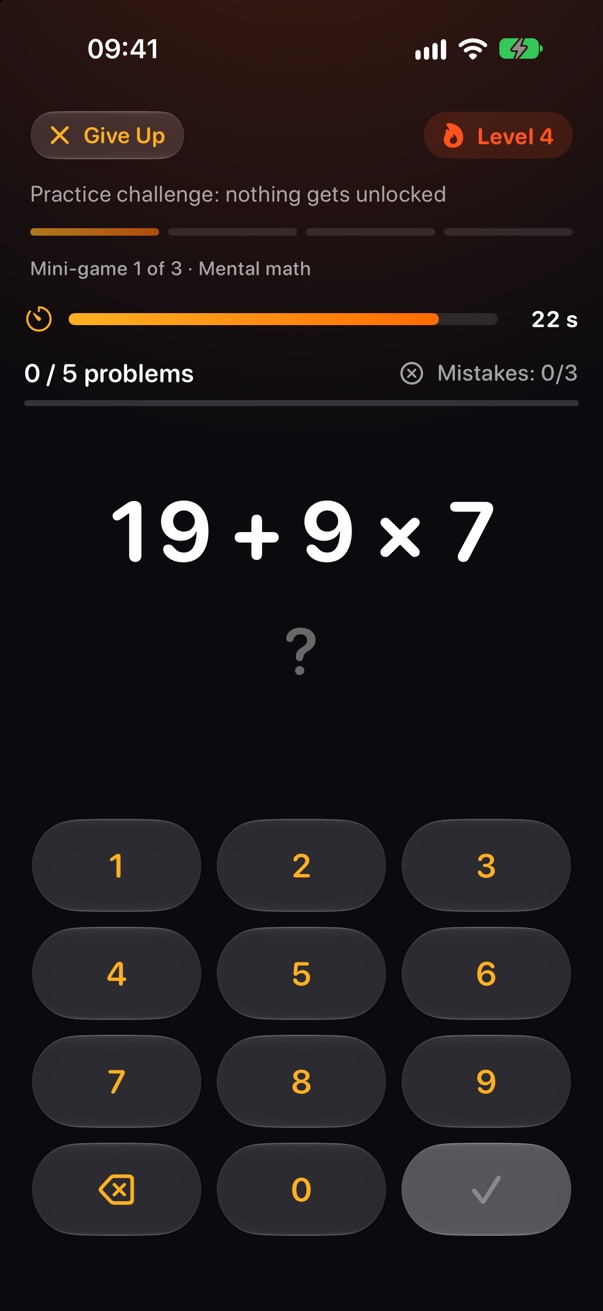
Solve each problem before the countdown ends. Easy at level 1, chained operations by level 5.
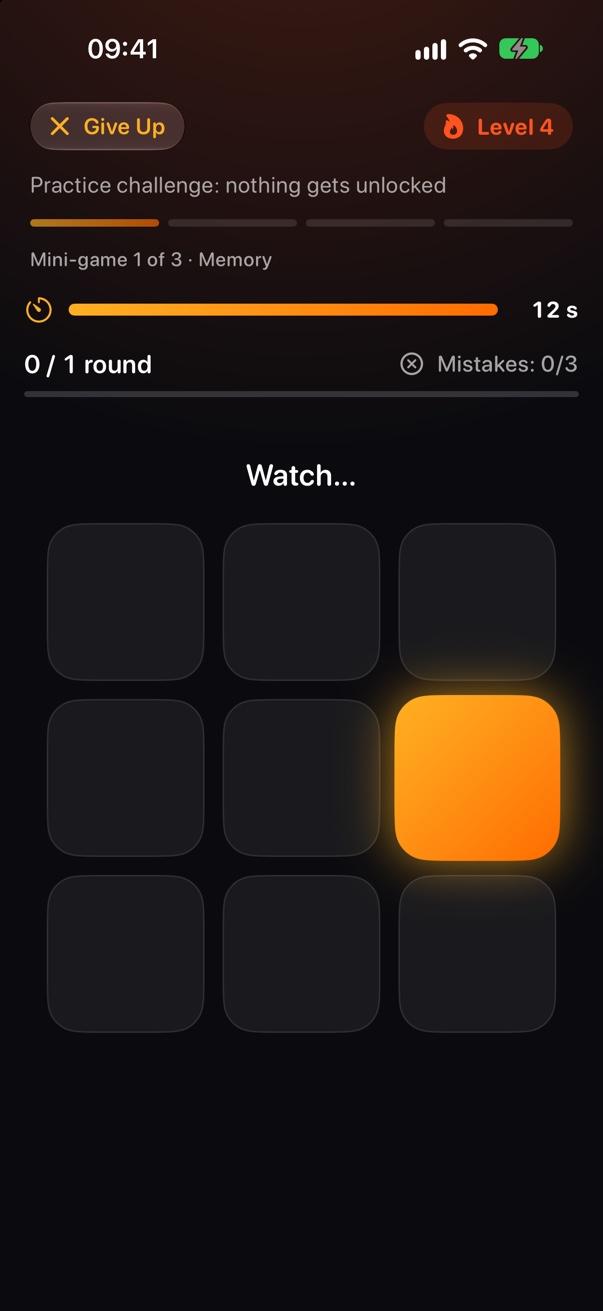
Watch the squares light up, then repeat the sequence. The clock only runs while you answer.
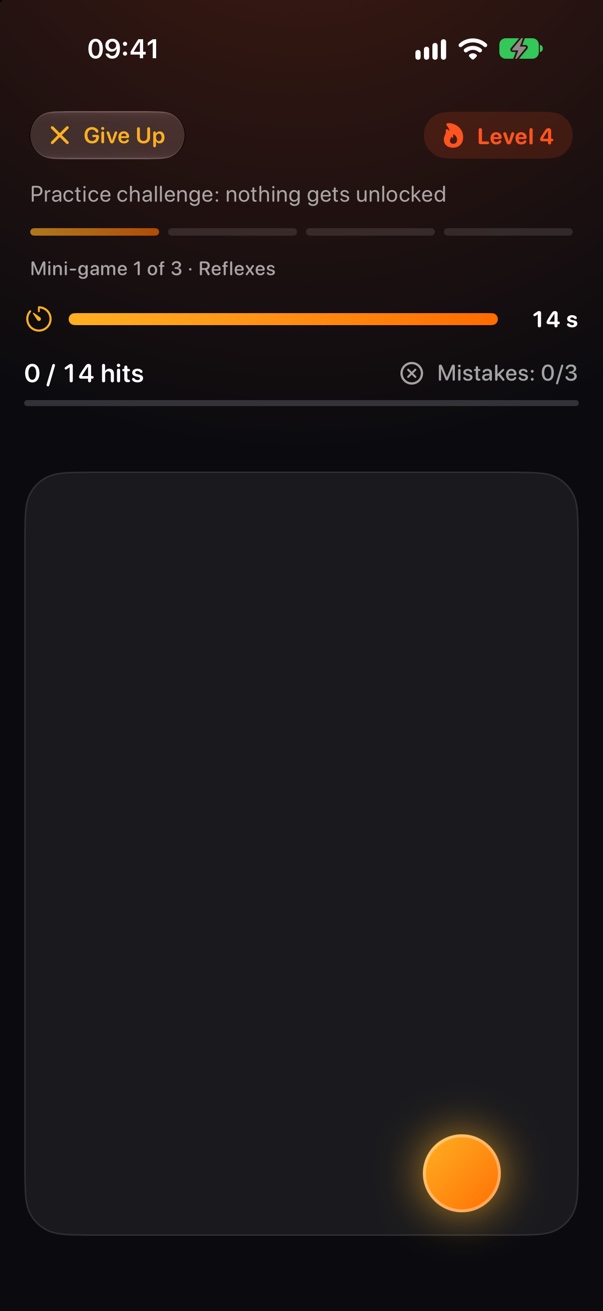
Tap the circles before they disappear. If time runs out, the game starts over.
See your progress
Your next challenge, challenges beaten and challenge-free days in a row.
Suggested limits based on how you really use your phone, not a generic number.
See when you scroll the most and get a suggested schedule to block it.
Playlock uses Apple's Screen Time. Your usage stays on your iPhone: we never see which apps you use.
Pricing
€0
3-day free trial on yearly
Yearly or weekly
Prices are shown in the App Store in your local currency. Cancel anytime in your App Store settings.
FAQ
By default, iPhone Screen Time limits can be ignored once you reach them, so after a few days most people dismiss them without thinking. Playlock uses the same Screen Time technology to lock the app, but to get more time you have to beat a short mini-game, and each one that day is harder than the last. That pause is what breaks the automatic scroll.
Yes. Playlock is not a wall: beat a challenge and you get a few minutes of extra time. At level 1 that takes about ten seconds. Phone calls and messages from apps you haven't limited keep working as usual.
No. Playlock is built on Apple's Screen Time, and your usage data stays on your iPhone. The app only receives anonymous tokens for the apps you choose; we never see their names or how long you use them.
Everything unlocks and a new day starts. If you hit the top level today, tomorrow starts one level higher. A day without challenges brings it back down.
Yes. The free version includes one daily limit, one schedule and 5 minutes of extra time per challenge. Playlock Pro unlocks unlimited limits and schedules, 4 weeks of history, progress sharing and 10 or 15 minutes of extra time.
Not yet. Playlock is available for iPhone and needs iOS 26 or later.
From the blog
Doomscrolling isn't a willpower problem. Why the feed is so hard to put down, and the small, practical changes that make stopping easier.
The best iPhone app blockers compared by how they stop you: scheduled blocks, a pause before opening or a challenge to unlock, and what Screen Time can do.
A five-step plan to reduce screen time: measure a normal week, pick the two apps that take the most, set limits that hold, add friction and replace the habit.

Download Playlock, set one limit and see what changes this week.